
User management in Prudentia is handled by Admins. This article covers the three core tasks: viewing all users in your workspace, adding a new user, and editing an existing user's profile.
All tasks in this article require Admin access. If you do not see the user management options described below, contact your workspace Admin or reach out to support@prudentiasciences.com
Viewing all users
To access the user management page, click your initials in the upper-right corner of the top navigation bar. This will open the Users & Roles page, where all users in your workspace are listed along with their assigned roles and current status.

Adding a new user
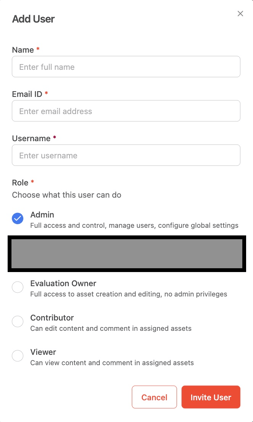
New users are added by invitation. From the Users & Roles page:
- Enter the user's first and last name and email address, and provide a username (this will be their login ID)
- Select the user's role from the dropdown: Admin, Assessment Owner, Contributor, or Viewer. Refer to the Understanding User Roles and Permissions article if you are unsure which role to assign
- Click Invite User. The user will receive an email from Prudentia Sciences inviting them to set their password and access the platform.
Editing a user
From the Users & Roles page, click the ellipsis (···) under the Actions column for the user you want to update. Four actions are available:
- Edit name. Update the user's first and last name and click Save Changes. Click Cancel to discard. Note: this updates the user's display name and avatar initials only. It does not change their login ID.
- Change role. Select a new role from the dropdown and click Update Role. Click Cancel to discard. Role changes take effect immediately across the workspace. Note: changing a user's role will impact how they interact with all Assessments across the platform.
- Disable user. Click Disable User to temporarily revoke platform access. The user's account remains in the system and can be re-enabled at any time. Use this option for temporary access restrictions. Note: consult your organization's account management policies when deciding between disabling and deleting a user account
- Delete user. Permanently removes the user from the platform. Unlike disabling, deletion cannot be undone. Note: consult your organization's account management policies before permanently deleting a user account.