An assessment is the analytical core of every evaluation. Each time you run one, Prudentia's AI engine interrogates all connected data — your data room documents and the linked public sources — to produce a structured output across a set of clinical, scientific, regulatory, and commercial domains. Assessments can be run multiple times within a single evaluation as new data becomes available.
Running an assessment
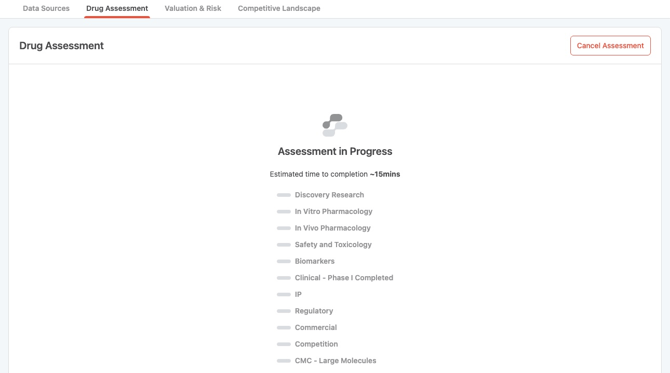
From the evaluation landing page, open the Drug Assessment tab and click Start Drug Assessment. An information screen will appear confirming the request and providing an estimated completion time. Assessments typically take around 15-30 minutes to complete.
While the assessment is running, you can click Cancel Assessment at any time to stop the process. A cancelled assessment will not be saved or recorded.
Assessment results are static once generated. The output reflects a snapshot of all data at the time the assessment was run. If new documents are added to the Data Room after an assessment has completed, you will need to re-run the assessment to incorporate that information.
Understanding the assessment output
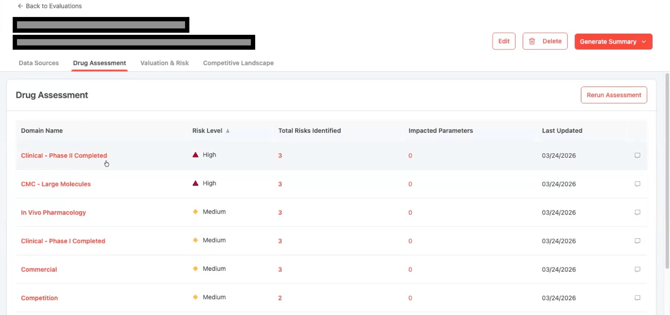
Once the assessment completes, results are displayed as a set of domains and subdomains, each representing a distinct area of analysis. For each domain, the following information is shown at a glance:
- Domain name. The area of analysis covered by this domain
- Risk level. The assessed risk level for this domain, ranked as "High", "Medium", "Low", or "Insufficient Evidence"
- Total Risks Identified. Number of risks surfaced across the domain
- Impacted parameters. Parameters flagged for adjustment in the Valuation and Risk Simulator
- Last Updated. Date the most recent assessment was generated
About domains
Domains are a fixed set of analytical categories that Prudentia applies to every Evaluation. Some domains are dependent on the development stage of the asset (for example, domains relevant to Phase III trials will only appear when the asset is at that stage). Refer to the "Reviewing domain-specific output within an Evaluation" article within the Prudentia Knowledge Base for additional details on domains.
Re-running an assessment
If new data has been added to the Data Room, or if you want to refresh the assessment for to pull the most recent public information into the findings, click Re-run Assessment from the Drug Assessment tab.
Note that each re-run generates a new assessment snapshot. Previous comments and workflow assignments will be retained, but the assessment output will always reflect the most recently completed run.